






Apple ID usage tutorial [Part 1]
![Apple ID usage tutorial [Part 1]](https://www.humkt.cn/assets/images/articles/art_69c2abd228bc5.png)
1. Preparation and Login Notes
- Login channelMust operate through Apple official website (suggest using computer browser), mobile settings cannot complete US account information modification, official website address:https://appleid.apple.com
- Login verification: When logging in may trigger Apple ID security prompt, need to bind phone number (supports China mainland phone number), follow page instructions to complete.
- Common problem solving:
- If binding phone number prompts "Verification code cannot be sent to this phone number": can switch to iPhone login binding, or temporarily skip binding, first complete information modification, use for a period of time then try binding again
- Pop up "Due to error, cannot complete this operation. Logging out": First clear browser cache then log in again, still ineffective can switch network (like switch mobile hotspot)
- Tip "Unable to verify your identity": High probability is current IP being Apple risk control, if using proxy software need first close; not using proxy then switch to mobile, turn off Wifi only use data login official website
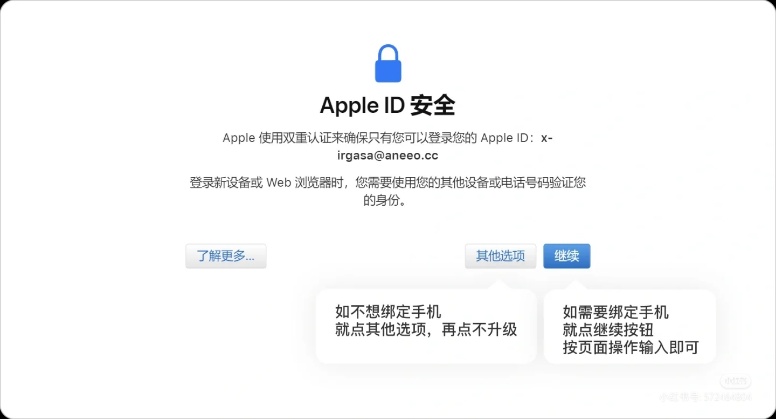
2. Change login email (Apple ID)
⚠ Important reminder: After change, need to use new email login account, with original email no any association, new email no regional restriction, just need to ensure not been other Apple account occupied (if prompt "Cannot use this email address", indicates that email has been registered)
- Account not bound to mobile number:
Log in official website after, directly click page in 【Apple ID】 option, follow subsequent pop-up guide steps complete email modification can.
- Account linked phone number:
After logging in, click on the [Email and Phone Number] option, in the pop-up management window, find the "Default Email" right side "⊖" delete symbol, click after follow the system prompts to operate, complete 2FA to change new email
✅ Warm reminder: If during the modification process the "Add new payment method" page pops up, just close the window directly, no need to operate
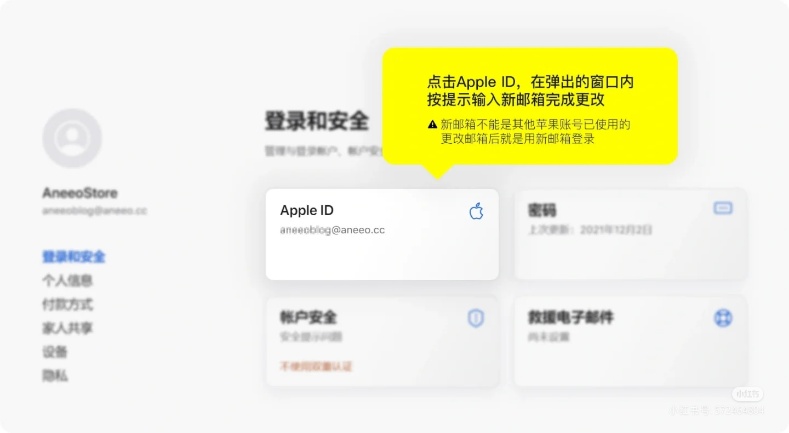
3. Change password / security information
- Change login password:
Log in official website after, find and click [Password] option, according to prompt enter current account password complete identity verification, then set new password (must comply with Apple security rules: 8 or more characters, include uppercase and lowercase letters, numbers or special symbols), confirm after submit can take effect
- Change security information / Bind phone number:
After logging in, click on the 【Account Security】 option to perform two operations:
- Unbound phone number account: on this page can modify original security information (such as security questions etc)
- Need to bind / change phone number: find the phone number management option on this page, follow the instructions to complete binding or changing
⚠ Note: Account binding phone number after, system will automatically cancel original security information, subsequent verification will take phone number as main
✅ General tip: During the process of modifying all information, the system may require re-entering the account password to confirm the operation, at this time you need to enter the current Apple account password being used (if the password has been changed, then enter the modified new password); the Apple official website will not ask for the email itself's password, do not disclose the email login password